Build the Skyscraper Controls for Every Platform
Roblox defaults plus UI habits that keep materials moving on PC, mobile, and console.
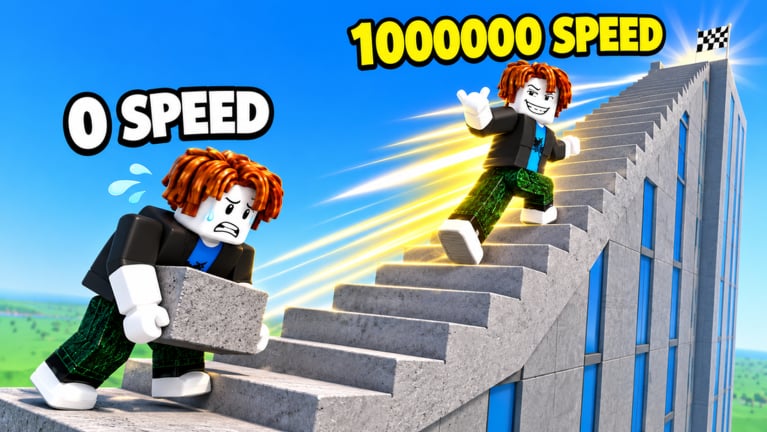
Why controls matter on a build sim
Build the Skyscraper! is easy to understand and easy to fumble: grab materials, walk them to the tower, place floors, train carry and speed, finish with teammates. Missed interacts, bad cameras, and menu confusion waste entire trips—especially under Lava Update path pressure. This page covers expected desktop, mobile, and console control patterns using standard Roblox defaults, plus UI tips for this loop.
Exact prompts can vary with your device and Roblox settings. If an on-screen hint disagrees with this wiki, follow the live prompt. Then return to Getting Started or Materials and Carry for gameplay context.
Shared Roblox movement basics
Across platforms you will:
- Move through the world toward depots, gyms, and scaffolds.
- Jump to clear small ledges (carefully under load).
- Rotate the camera to keep the place zone visible before you arrive.
- Use an interact / activate action to pick up, place, or train.
- Open Roblox or experience menus for settings, people, and any code entry UI.
Build the Skyscraper does not ask for complex combos. It asks for reliable repeats. Bind comfort beats fancy layouts.
Desktop (keyboard and mouse)
Typical expectations:
- WASD — Move.
- Space — Jump.
- Mouse — Camera look; click UI buttons.
- E (common Roblox interact) — Pickup, place, or train when prompted. If your experience remaps interact, use the on-screen key.
- Shift — Sprint if enabled in your Roblox movement settings.
- Esc / Roblox menu — Settings, leave, screenshots, people list.
Desktop tips for this game:
- Pre-aim the camera at the place tile while still approaching so you do not spin under a full carry.
- Avoid jump spam near lava-themed edges; walking is safer with weight.
- Click menus deliberately—misclicks mid-unload cancel progress.
- If you use overlapping browser overlays or recording software, keep the interact key free.
When loads feel clumsy, fix stats via Training Stats rather than only blaming binds.
Mobile and tablet
Touch defaults usually include:
- Left thumb stick / dynamic joystick — Move.
- Jump button — Jump.
- Camera drag on the right side of the screen — Look.
- Interact button that appears near context actions — Pickup / place / train.
- Roblox hamburger / menu — Experience and account settings.
Mobile tips:
- Increase brightness outdoors so highlighted place zones stay visible.
- Keep thumbs clear of the interact button while turning; accidental camera swipes under load cause missed deposits.
- Use slightly lighter stacks until your interact timing feels consistent—see Materials Tier for priority without overpacking.
- Consider a clip-on grip or playing seated when long co-op sessions make thumbs slip.
- Auto-rotate lock can help if flipping between portrait and landscape breaks your muscle memory—pick one orientation per session.
Tablet players get more screen for UI; still treat the place zone as a precision target, not a vague “somewhere ahead.”
Console
Controller expectations generally map to:
- Left stick — Move.
- Right stick — Camera.
- A / Cross (platform dependent) — Jump.
- X / Square or contextual button — Interact when the prompt appears. Always trust the on-screen icon over memory from other games.
- Options / Menu — Roblox and experience menus.
Console tips:
- Lower camera sensitivity slightly if you overshoot place tiles while loaded.
- Hold interact for the full prompt duration if training stations require sustained input.
- Watch for UI focus traps—make sure the game world is focused before you spam interact.
- Party with friends through Roblox party features when possible so role calls in Co-op Teamwork stay easy.
Menus, codes, and social UI
Builders often need menus mid-session:
- People / server lists — Find quieter pads when 50-player chaos hits.
- Settings — Graphics down on low-end mobiles if lava glow tanks FPS; stable FPS prevents mis-drops.
- Code redemption UI — Only use verified entries from Codes. This wiki does not invent codes. If no working codes exist, skip the menu and keep building.
Do not open heavy menus while standing on the place tile. Step aside so teammates can unload.
Interact hygiene under load
Most failed trips are interact problems, not mysterious bugs:
- Arrive inside the volume.
- Wait for the prompt.
- Activate once; do not mash in a panic that cancels.
- Confirm the load cleared before you sprint away.
- Exit along your known path.
If prompts flicker, you are probably on the volume edge—inch forward. If nothing appears, you may be at the wrong tower or holding nothing useful; re-check How to Build.
Accessibility and comfort
- Take breaks; incremental co-op sessions run long.
- Use larger UI scale in Roblox settings if prompts are hard to read.
- Colorblind players should rely on shape landmarks, not only lava glow hue, when learning routes from Lava Update.
- Hearing-impaired players can lean on text calls; the game loop does not require audio cues to finish towers.
Practice routine (five minutes)
- Walk depot to pad empty on your platform.
- Pick up a small load; place it.
- Repeat with a medium load.
- Touch a training interact once without committing to a long AFK.
- Open and close the menu away from the pad.
- Join a teammate callout and deliver one coordinated top-off.
Master that, and platform differences stop mattering as much as teamwork and routes. Controls are solved when materials keep moving and skyscrapers keep finishing.
Frequently Asked Questions
Quick answers for builders climbing the skyline.
What is the interact key on PC?
Many Roblox experiences use E, but always follow the on-screen prompt for Build the Skyscraper on your account and device.
Why do I keep missing placements on mobile?
Camera swipes and standing on the volume edge are common causes. Pre-aim, inch forward until the prompt stabilizes, and use lighter loads until timing feels steady.
Can I play with mixed platforms in one squad?
Yes. Leave extra space on the pad, avoid micro-parkour mandatory routes, and use short text calls so mobile, console, and desktop players stay aligned.
Where do I redeem codes?
Use the in-experience code or settings UI if present, and only enter verified strings listed on Codes. Skip rumors.
Do controls change in the Lava Update?
Core Roblox moves stay the same. Themed maps may need slower cameras and safer jumps—see Lava Update.